90DaysOfDevops-Day10

Day-10:Advance Git & GitHub for DevOps Engineers
Introduction
Hey DevOps enthusiasts! Today, we're diving into the cool stuff in Git and GitHub. Get ready to learn advanced tricks like Reverting, Reset, Rebase, and Merge, and why Branches are a big deal. We're keeping it interactive with hands-on tasks – stuck? Solutions are at your service. No more delays, let's make Git and GitHub a breeze! 🚀
GIT Branching
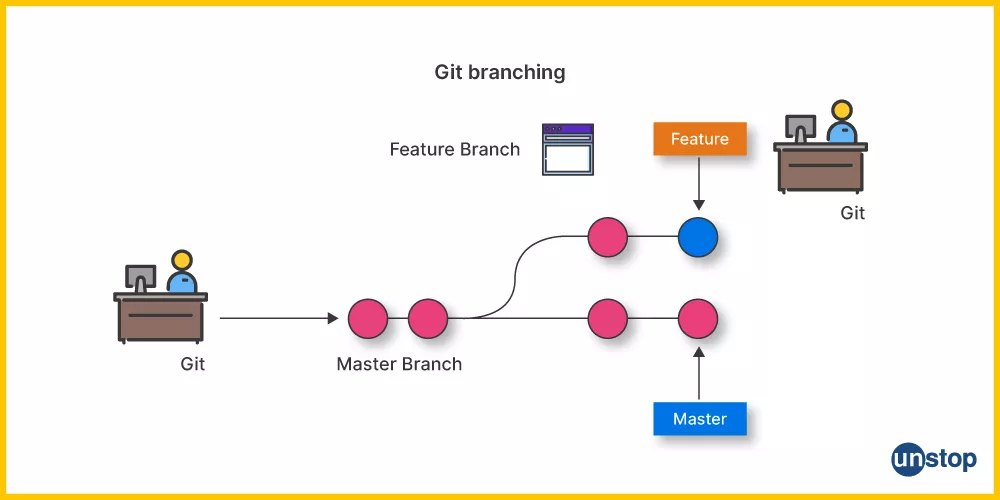
What is Git Branch?
A branch in Git is the line of development. In the normal scenario, we have a default branch ("master" or "main" ) and then we have other sub branches called the feature branch.
The Feature branch are used to push code that contains changes from the local repository to the remote repository without disturbing the line of development i.e. the default branch.
These sub branches can later on get merged to the default branch if it meets the requirements of the project.
Naming Convention of Branches:
A branch can be named on the purpose they solve. Here's a table explaining the ideal naming convention that should be followed:
| Branch Name | Purpose It solves |
| Feature Branch | For changes like adding features or updating a feature. |
| Bugfix branch | For commits containing Bug Fixes |
| Release branch | For Newer Version |
| Hotfix branch | For critical issues or bugs in a production environment |
Commands:
To Check the current branch
git branchTo Create a branch
git branch <name_of_branch>To Checkout and Create a branch at the same time
git checkout -b <name_of_branch>To list all branches
git branch -aTo Delete a branch
git checkout -d <name_of_branch>
Git Revert and Reset
What is Git Revert?
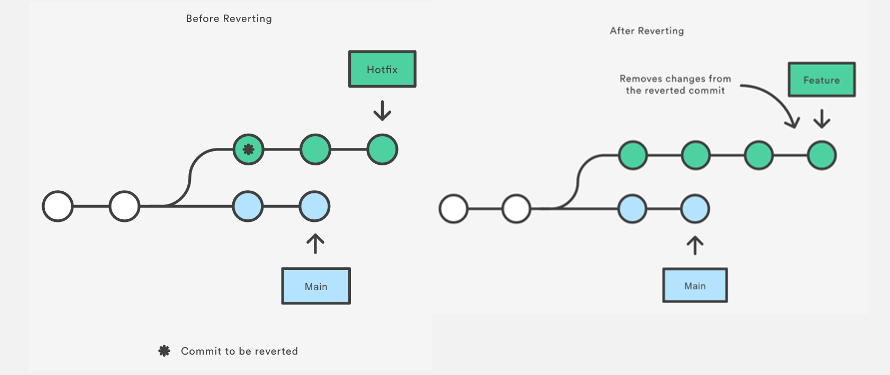
Git Revert is the command that is used for undoing changes to a repository's commit history.
Git Reverts creates a new commit in which the changes made in the previous commit are reverted or Undone. By doing this, it preserves the commit history and users can access to the past commit if needed.
NOTE: It does not delete the commit.
Commands:
To Revert a change
git revert <Hash_code_of_the_commit>To Revert the previous commit
git revert HEAD
What is Git Reset?
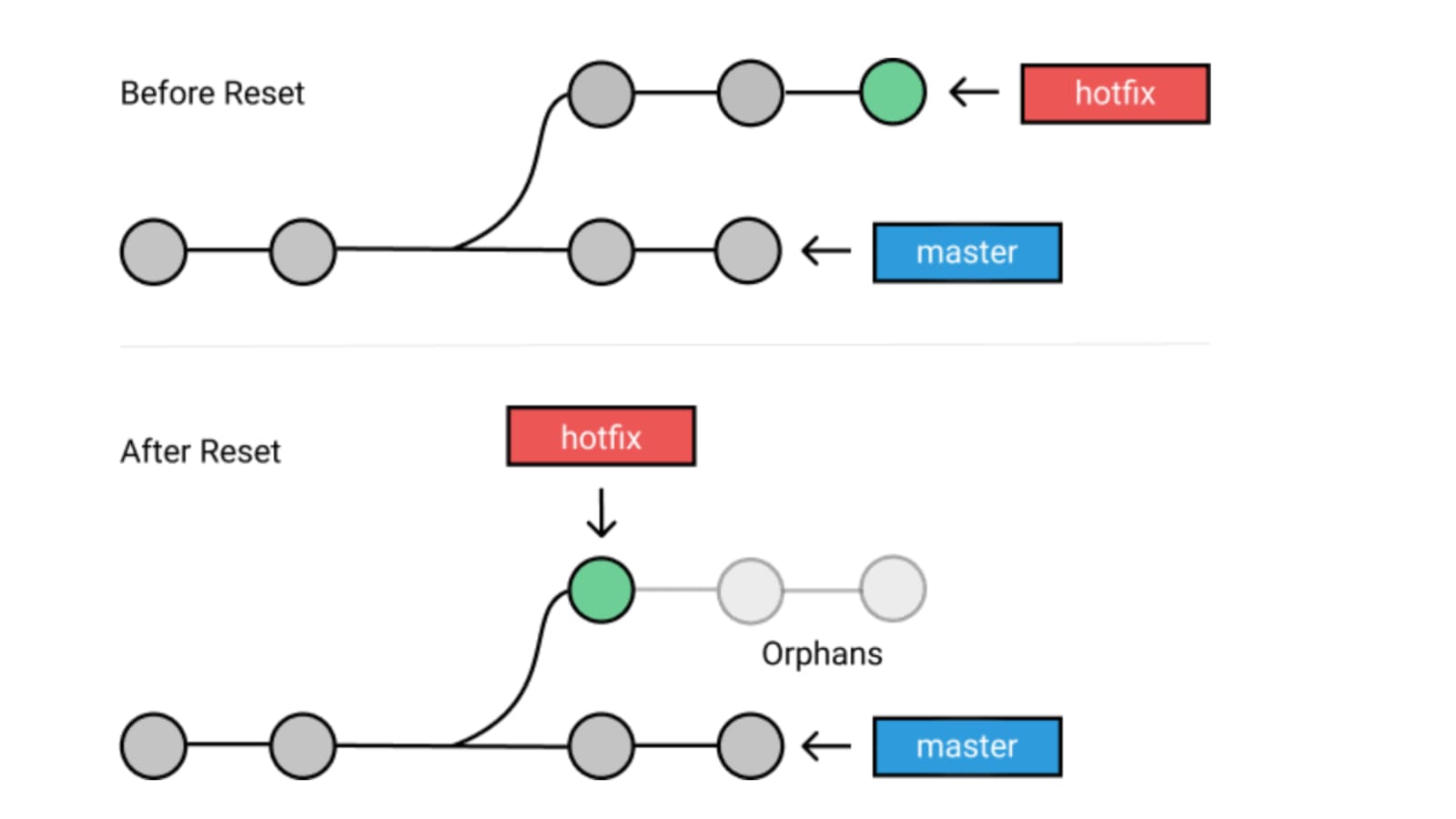
This is a similar command as compared to git revert but the catch here is that it creates a commit undoing the changes and DELETES the commit which needs to be undone.
There are two types of Resetting:
--soft : It resets the commit but still we can have the access to the commit in the git history.
--hard : It resets the commit and deletes it. This way we don't have any access to the history and the commit cannot be accessed.
Commands:
git reset --soft HEAD~n
git reser --hard HEAD~n
Where n is the number of commits respectively from the head we want to reset.
Git Rebase and Merge
What is git Rebase?
Rebasing is the process of moving or combining a sequence of commits to a new base commit. Rebasing is most useful and easily visualized in the context of a feature branching workflow. The general process can be visualized as the following:
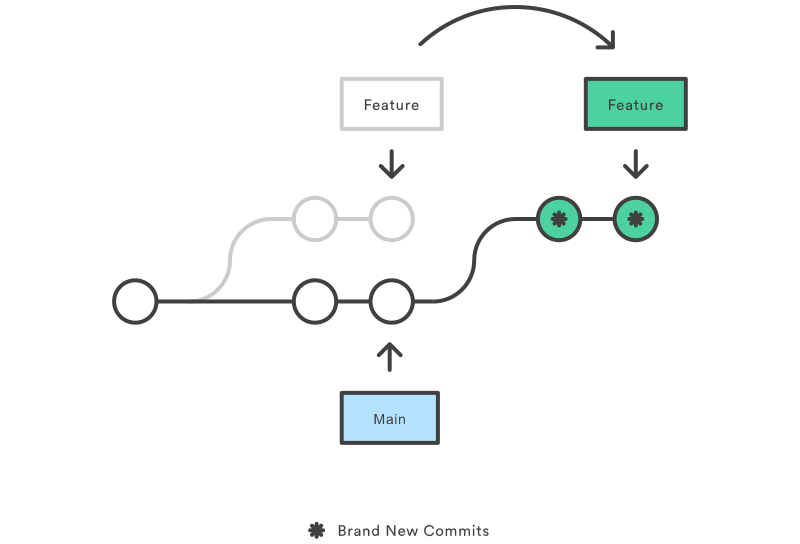
From the above we can conclude, rebasing is changing the base of your branch from one commit to another making it appear as if you'd created your branch from a different commit.
Git accomplishes this by creating new commits and applying them to the specified base.
NOTE: It's very important to understand that even though the branch looks the same, it's composed of entirely new commits.
Read more about Rebasing, Here.
What is Git Merge?
Git merge is a command used to merge two or more branches into the Main or Default branch.
Say we have a new branch feature that is based off the main branch. We now want to merge this feature branch into main.
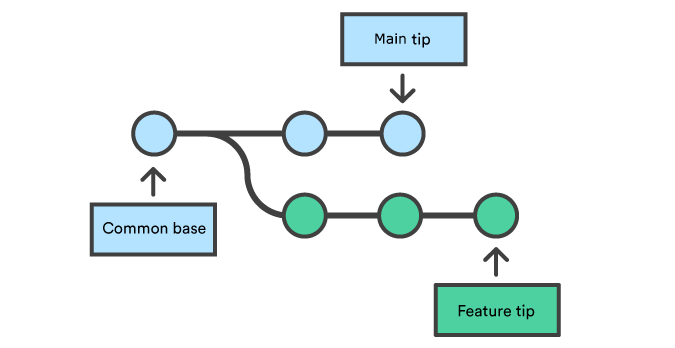
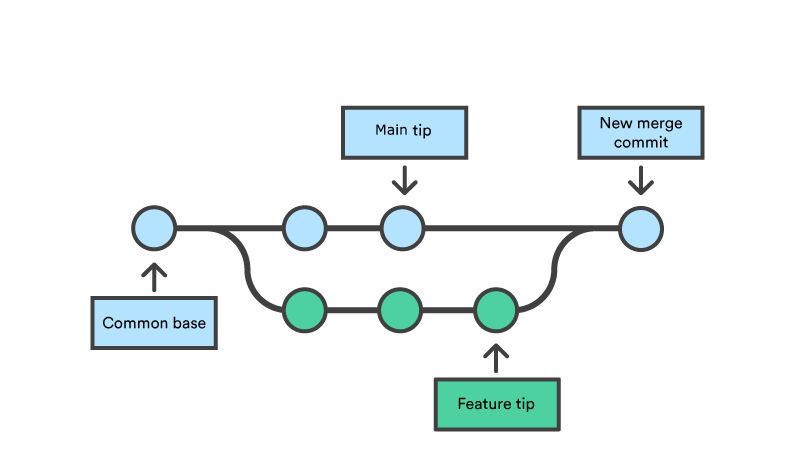
Calling the git merge command will merge the specified branch feature into the main branch.
Read more, Here.
Commands:
git merge
Hands On Practice
Task 1:
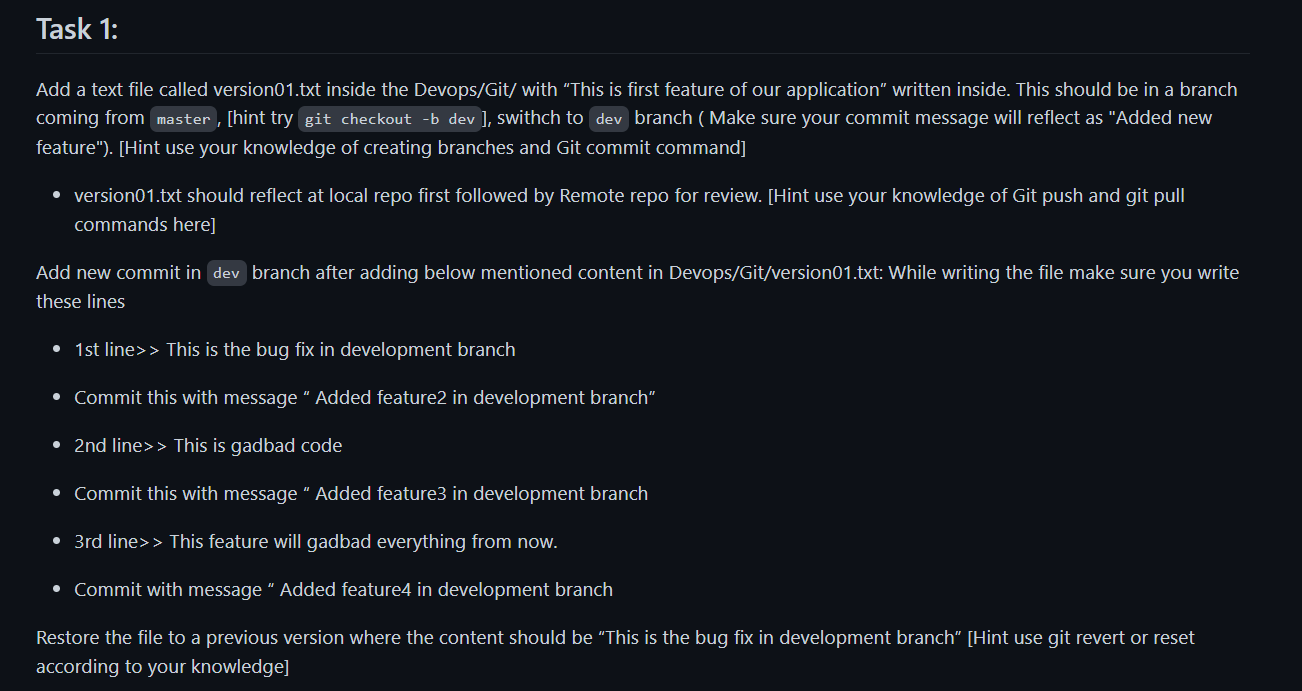
Navigate to the Devops directory and create a new branch called
dev:git checkout -b dev && git branch
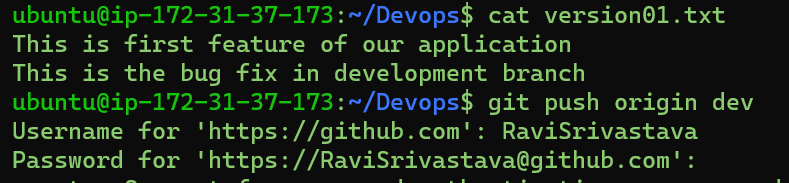
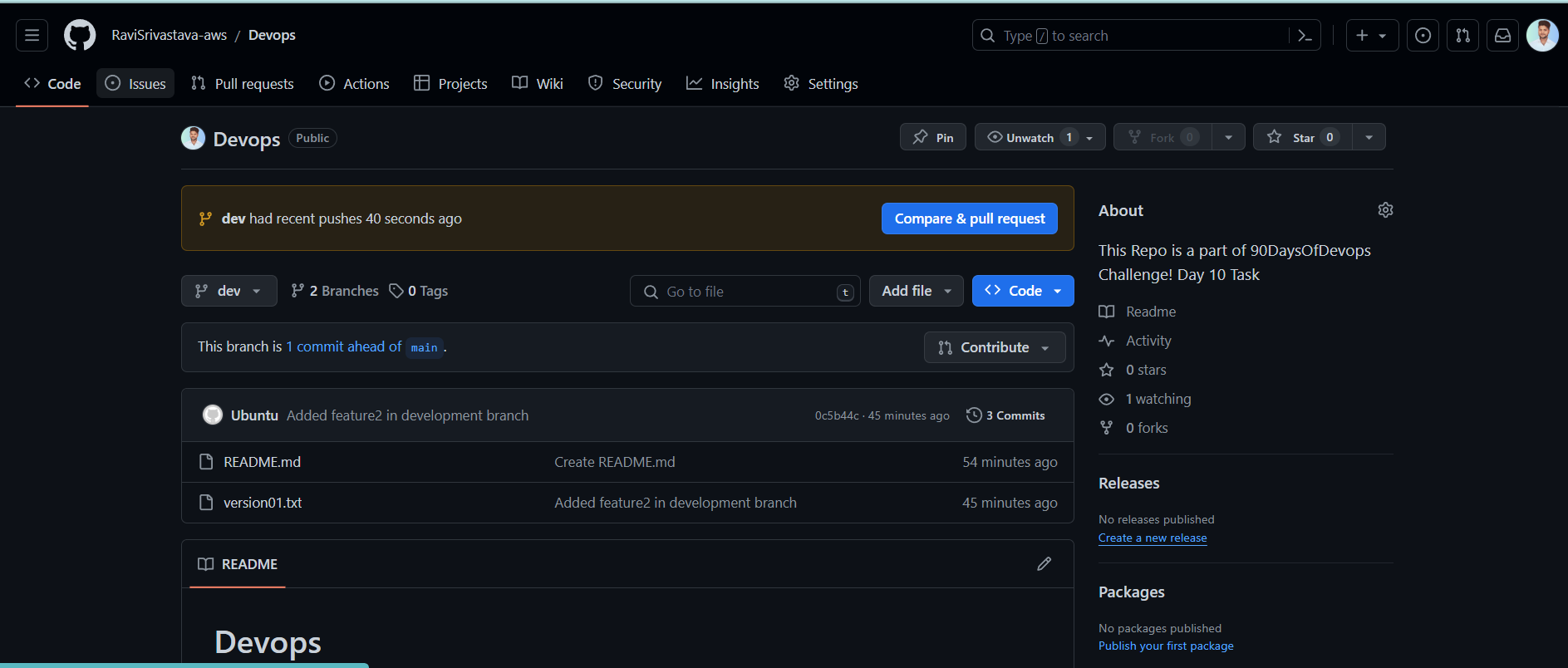
Add new commit in
devbranch after adding below mentioned content in Devops/Git/version01.txt: While writing the file make sure you write these lines
1st line>> This is the bug fix in development branch
echo "This is the bug fix in development branch" >> version01.txt
2nd line>> This is gadbad code
echo "This is gadbad code" >> version01.txt
Commit this with message “ Added feature3 in development branch
git add version01.txt
git commit -m "Added feature3 in development branch"
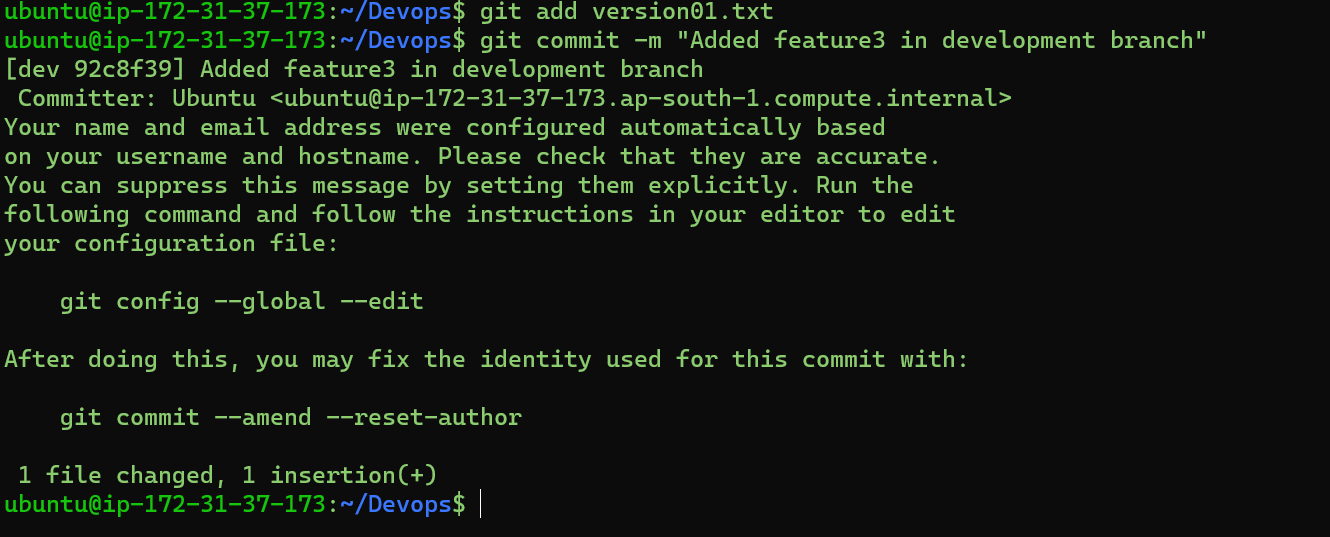
- 3rd line>> This feature will gadbad everything from now.
echo "This feature will gadbad everything from now." >> version01.txt
Commit with message “Added feature4 in development branch"
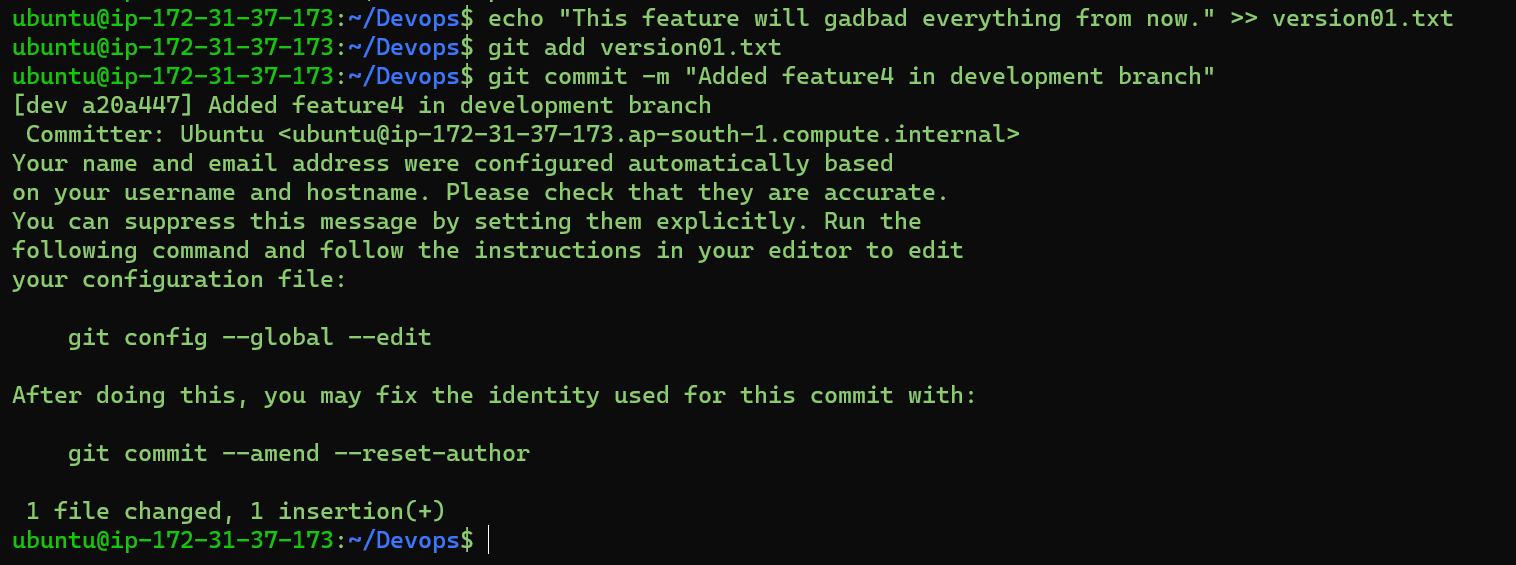
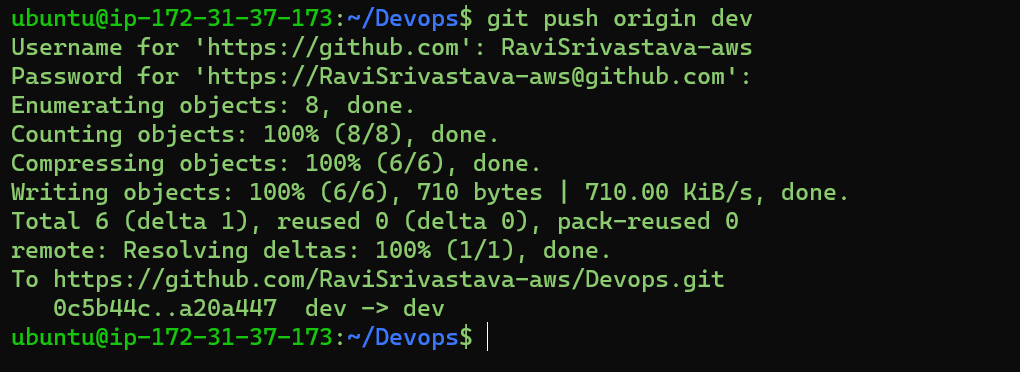
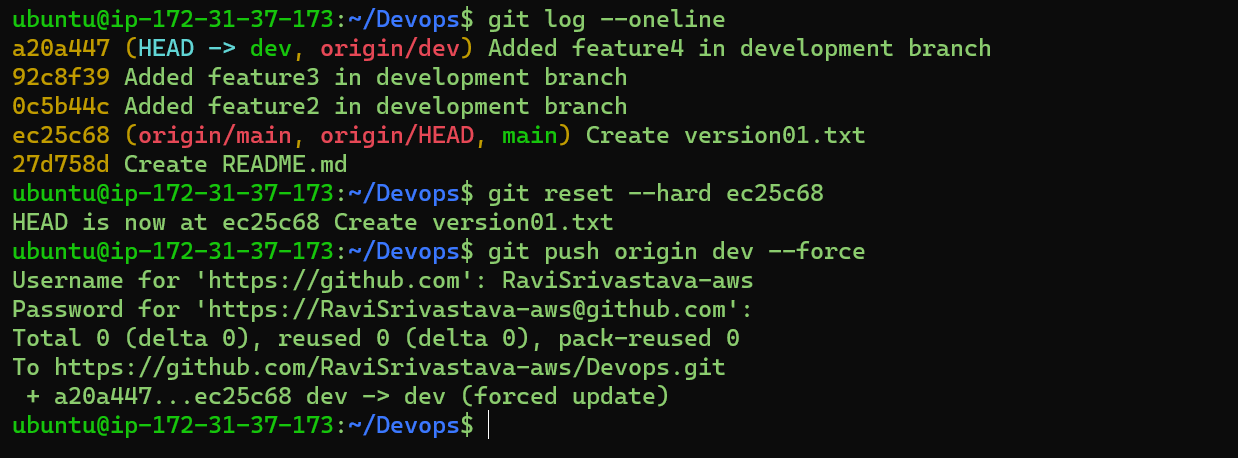
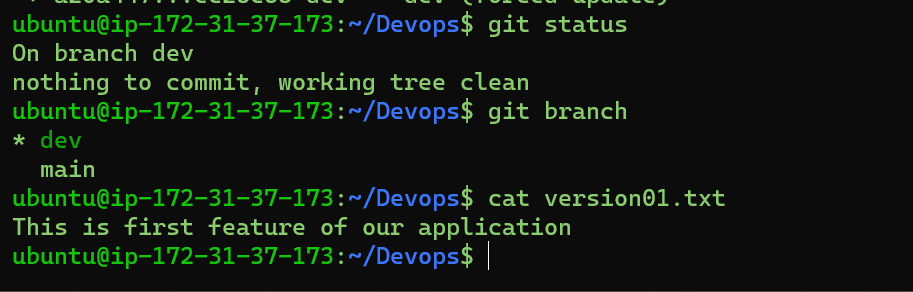
Restoring the file to a previous version where the content should be “This is the bug fix in development branch”. We'll be using git reset command followed by --hard flag.
git reset --hard ec25c68
git push origin dev --force
Task 2:
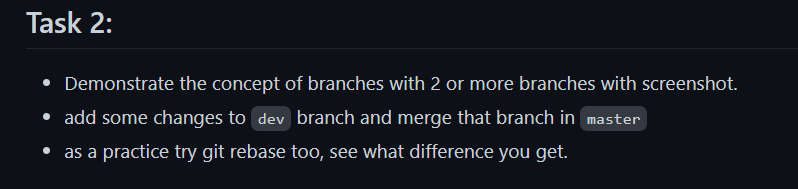
Create and switch to a new branch (e.g.,
feature_branch):git checkout -b feature_branchecho "created a new branch and added some changes in this feature_branch" > feature_branch.txt
Add changes to the
devbranch and merge it into themainbranch:git switch dev echo "Hello from TWS" >>version01.txt cat version01.txt git add version01.txt git commit -m "Make some changes"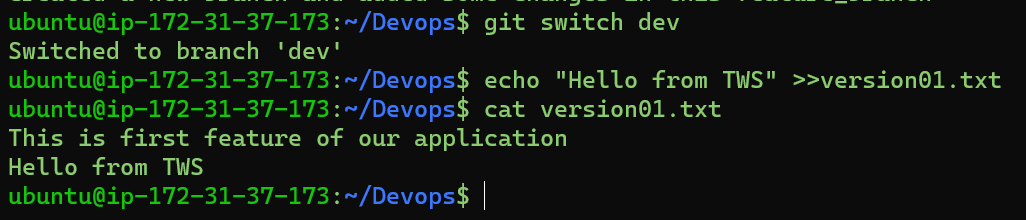
git switch maingit merge dev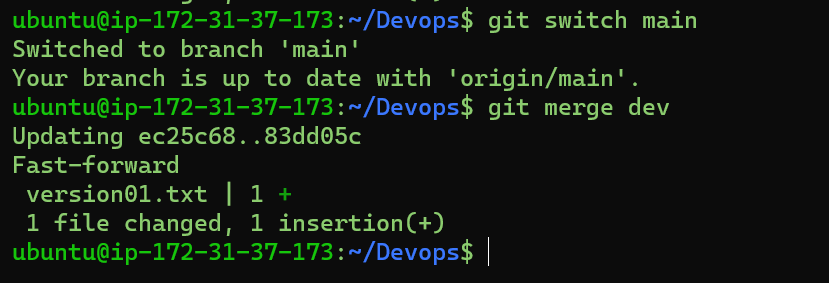
Practice
git rebase:Create and switch to a new branch (e.g.,
feature_branch2):git checkout -b feature_branch2
Make some changes in this branch, then rebase it onto the
devbranch: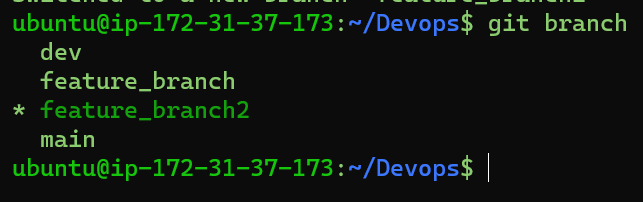
echo "created a new branch and added some changes in this feature_branch2" > feature_branch2.txtgit add feature_branch2.txt git commit -m "Added feature_branch2"
git rebase dev

This is the changes when you do rebase ⬆️
Conclusion
So here comes the end of this blog. In summary we covered the major concepts of branch, naming convention of branches, commands and also understood the differences between Git Revert, Git Reset and Git Rebase and Git Merge. Along with that the hands on practice section acted as a cherry on the cake making our learning even more fun and robust.
Happy Learning
Thanks For Reading!