90DaysOfDevOps-Day7
Understanding package manager and systemctl
What is a package manager in Linux?
In simpler words, a package manager is a tool that allows users to install, remove, upgrade, configure and manage software packages on an operating system. The package manager can be a graphical application like a software center or a command line tool like apt-get or pacman.
You’ll often find me using the term ‘package’ in tutorials and articles, To understand package manager, you must understand what a package is.
What is a package?
A package is usually referred to an application but it could be a GUI application, command line tool or a software library (required by other software programs). A package is essentially an archive file containing the binary executable, configuration file and sometimes information about the dependencies.
Different kinds of package managers
Package Managers differ based on packaging system but same packaging system may have more than one package manager.
For example, RPM has Yum and DNF package managers. For DEB, you have apt-get, aptitude command line based package managers.
Tasks
You have to install docker and jenkins in your system from your terminal using package managers.
Write a small blog or article to install these tools using package managers on Ubuntu and CentOS.
systemctl and systemd
systemctl is used to examine and control the state of “systemd” system and service manager. systemd is system and service manager for Unix like operating systems(most of the distributions, not all).
Tasks
check the status of docker service in your system (make sure you completed above tasks, else docker won't be installed)
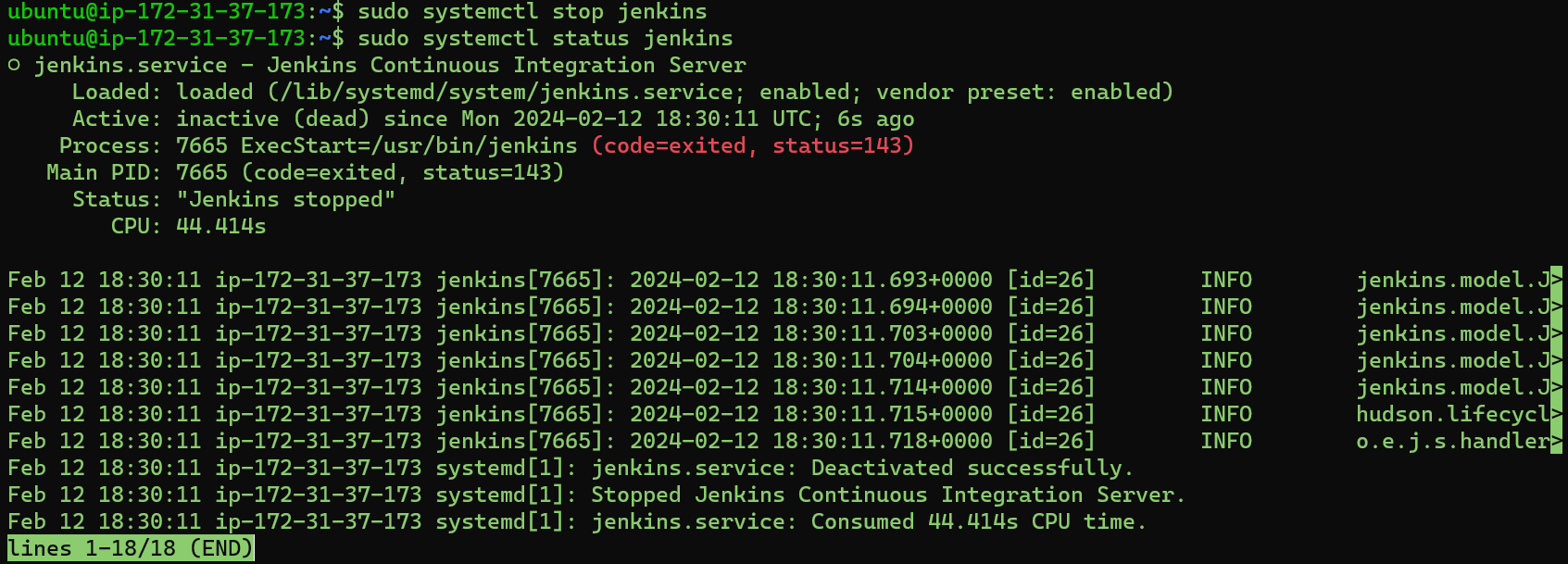
stop the service jenkins and post before and after screenshots
read about the commands systemctl vs service
eg. systemctl status docker vs service docker status
Installation of Docker on Ubuntu using terminal.
To install Docker on Ubuntu, you can follow these general steps. Please note that the exact commands might change over time, so it's always a good idea to check the official Docker documentation for the most up-to-date instructions.
Update Package Lists:
sudo apt updateInstall Required Packages:
sudo apt install apt-transport-https ca-certificates curl software-properties-commonAdd Docker GPG Key:
curl -fsSL https://download.docker.com/linux/ubuntu/gpg | sudo gpg --dearmor -o /usr/share/keyrings/docker-archive-keyring.gpgSet Up Docker Repository:
echo "deb [signed-by=/usr/share/keyrings/docker-archive-keyring.gpg] https://download.docker.com/linux/ubuntu $(lsb_release -cs) stable" | sudo tee /etc/apt/sources.list.d/docker.list > /dev/nullUpdate Package Lists Again:
sudo apt updateInstall Docker Engine:
sudo apt install docker-ce docker-ce-cli containerd.ioEnable and Start Docker Service:
 sudo systemctl enable docker
 sudo systemctl start docker
Verify Docker Installation: Run the following command to check if Docker is installed and running:
sudo docker --versionAdditionally, you can run a test container:
sudo docker run hello-worldThis command downloads a test image and runs a container, confirming that your Docker installation is working correctly.
Manage Docker as a Non-root User (Optional): By default, Docker commands require root privileges. If you want to run Docker commands without
sudo, add your user to thedockergroup:sudo usermod -aG docker $USERInstallation of Jenkins on Ubuntu using Terminal .
Prerequisites
Minimum hardware requirements:
256 MB of RAM
1 GB of drive space (although 10 GB is a recommended minimum if running Jenkins as a Docker container)
Recommended hardware configuration for a small team:
4 GB+ of RAM
50 GB+ of drive space
Comprehensive hardware recommendations:
- Hardware: see the Hardware Recommendations page
Software requirements:
Java: see the Java Requirements page
Web browser: see the Web Browser Compatibility page
For Windows operating system: Windows Support Policy
For Linux operating system: Linux Support Policy
Update the Debian apt repositories, install OpenJDK 17, and check the installation with the commands:
  sudo apt update
  sudo apt install fontconfig openjdk-17-jre
  java -version
sudo wget -O /usr/share/keyrings/jenkins-keyring.asc \
  https://pkg.jenkins.io/debian-stable/jenkins.io-2023.key
echo deb [signed-by=/usr/share/keyrings/jenkins-keyring.asc] \
  https://pkg.jenkins.io/debian-stable binary/ | sudo tee \
  /etc/apt/sources.list.d/jenkins.list > /dev/null
sudo apt-get update
sudo apt-get install jenkins
Start Jenkins
You can enable the Jenkins service to start at boot with the command:
sudo systemctl enable jenkins
You can start the Jenkins service with the command:
sudo systemctl start jenkins
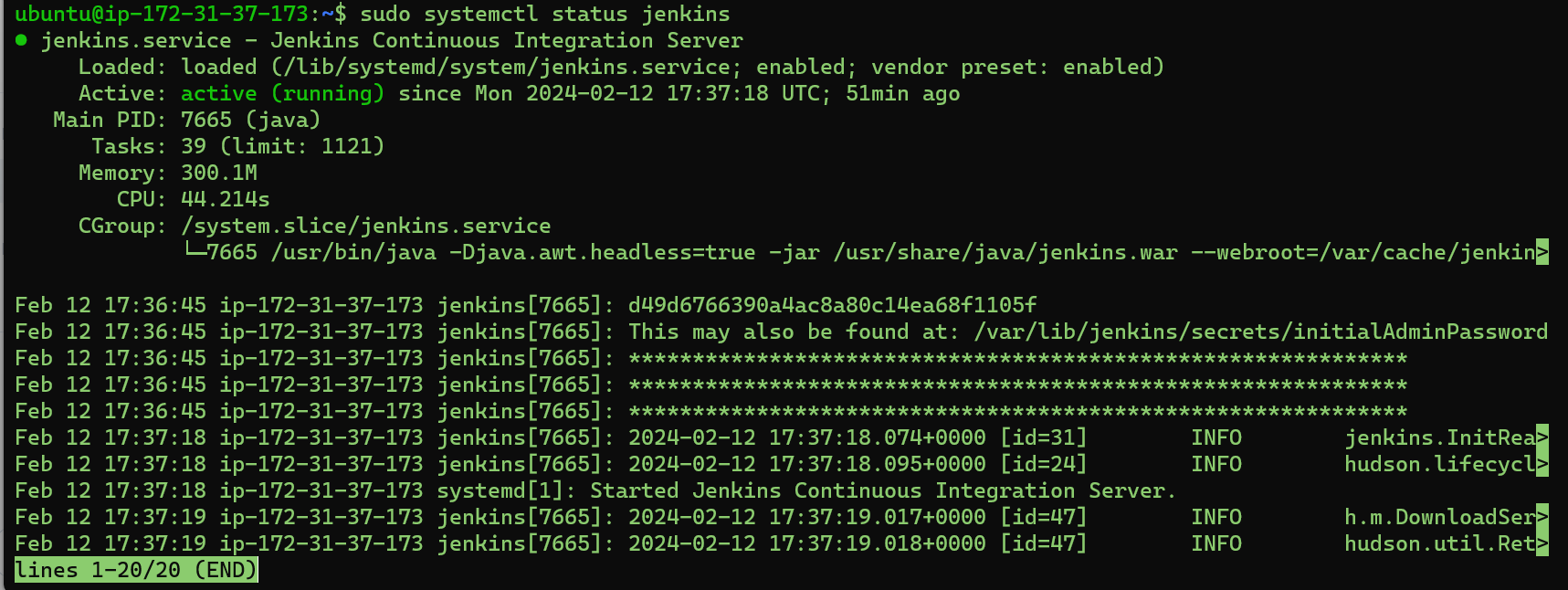
You can check the status of the Jenkins service using the command:
sudo systemctl status jenkins
If everything has been set up correctly, you should see an output like this:
Loaded: loaded (/lib/systemd/system/jenkins.service; enabled; vendor preset: enabled)
Active: active (running) since Tue 2018-11-13 16:19:01 +03; 4min 57s ago
check the status of docker service in your system (make sure you completed above tasks, else docker won't be installed).
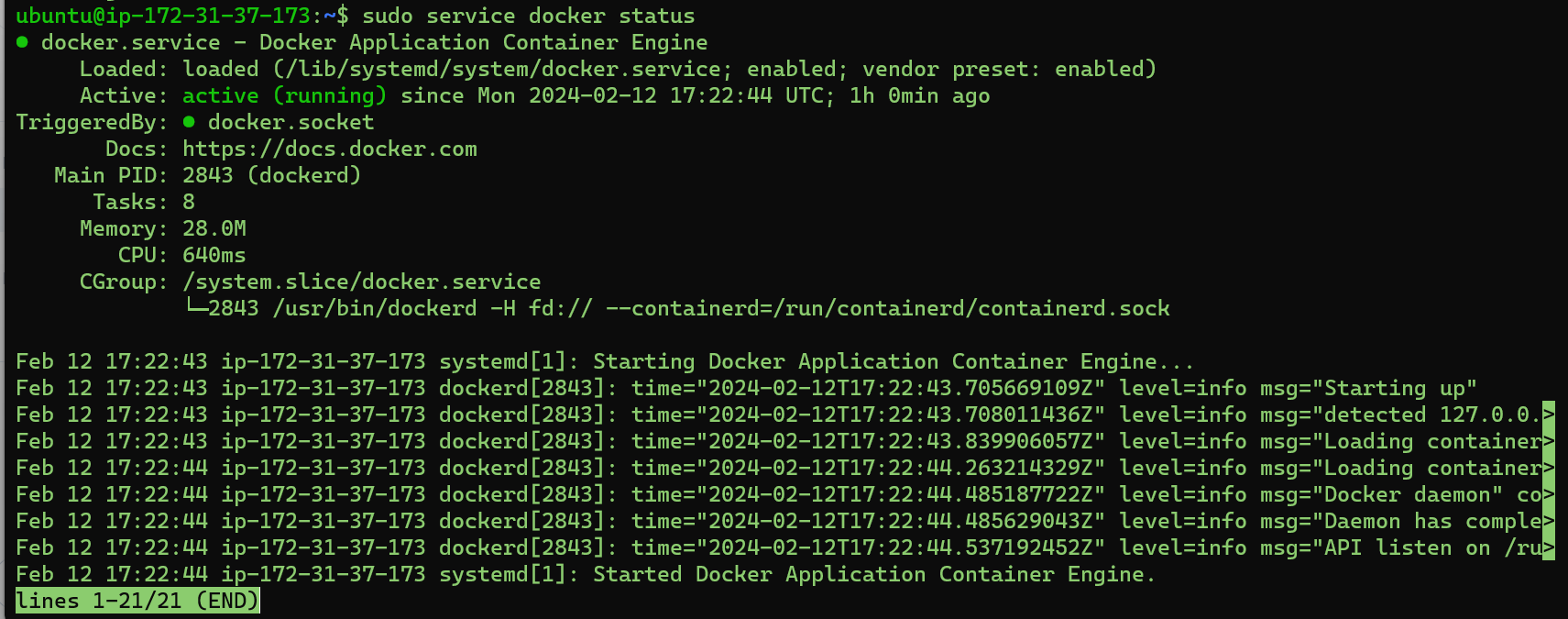
systemctl status docker vs service docker status
systemctl and service are two different commands used to interact with system services, including Docker. The difference lies in their underlying mechanisms and the systems they are designed to work with.
systemctl:systemctlis a Linux command that is part of thesystemdsystem and service manager.It provides a central management and configuration point for daemons and services on a Linux system.
It allows you to control and query the state of system services using subcommands like
start,stop,status,enable, etc.
Example:
sudo systemctl status docker
service:serviceis a more traditional command used to interact with init scripts and System V init system.It is often used for managing services on older Linux systems or those that still use the System V init system.
The
servicecommand is a higher-level interface for starting, stopping, and querying the status of services.
Example:
sudo service docker status
For Docker on modern Linux distributions, especially those using systemd, it's recommended to use systemctl for managing services. The systemctl command provides more advanced features and is the standard way to manage services on systems using systemd. The service command may still work on many systems, but it's considered legacy on modern systems.